AOI Watch Connect
Installation guide: use your Wear OS watch with an iPhone
01What you need
- A Wear OS 4 or newer smartwatch, for example a Google Pixel Watch or Samsung Galaxy Watch
- An iPhone with iOS 16 or newer
- A Google account and Wi-Fi for the watch
- For the first setup only: any Android phone (you can borrow one)
NoteGoogle only lets you set up a new Wear OS watch from an Android phone. You need it once, and after that the watch works with your iPhone through AOI Watch Connect.
02Set up the watch (one time)
Skip this step if your watch is already set up.
- On the Android phone, install the watch's companion app from Google Play (for a Pixel Watch, the Pixel Watch app).
- Turn on the watch and follow the setup on the Android phone. Sign in with your Google account.
- On the watch, open Settings › Connectivity › Wi-Fi and connect to your Wi-Fi.
- When setup is finished, turn off Bluetooth on the Android phone, or switch the phone off. The watch then connects only to your iPhone.
WarningDon't reset the watch after this step. Resetting means you'd need the Android phone again.
03Install the watch app
- On the watch, open Play Store.
- Search for AOI Watch Connect and tap Install.
- Open AOI Watch Connect on the watch.
- Tap Allow for every permission it asks for:
- Nearby devices: to connect to your iPhone
- Notifications: to show your iPhone notifications
- Physical activity and heart rate / sensors: for Apple Health
- All the time (background health access): so steps and heart rate are counted all day
TipYou can also install it from a computer: open the AOI Watch Connect page on play.google.com, tap Install and pick your watch.
The watch now shows Waiting for iPhone.
04Install the iPhone app
- On your iPhone, open the App Store.
- Search for AOI Watch Connect and tap Get.
- Open the app. When iOS asks to use Bluetooth, tap Allow.
05Pair the watch with your iPhone
- Keep the watch next to your iPhone, with the AOI Watch Connect app open on the watch.
- In the iPhone app, tap Pair. The app shows Looking for your watch…
- A Bluetooth Pairing Request appears on both devices with the same 6-digit code. Check that the codes match, then tap Pair on the iPhone and confirm on the watch.
- When iOS asks whether the watch may show your notifications, tap Allow.
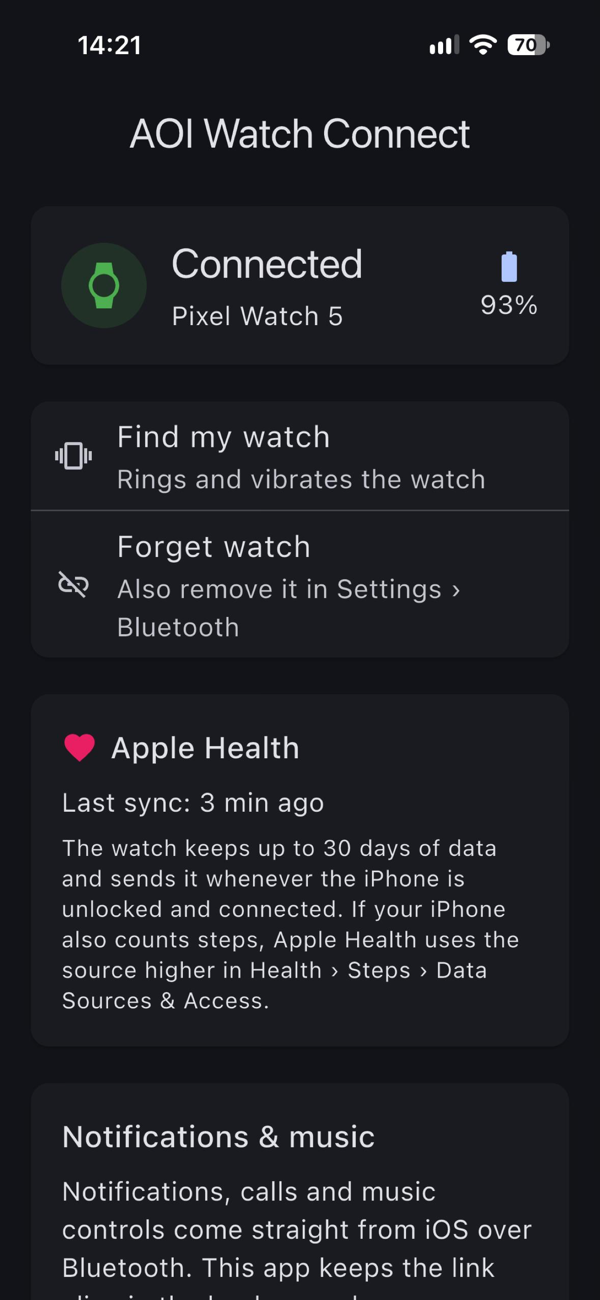
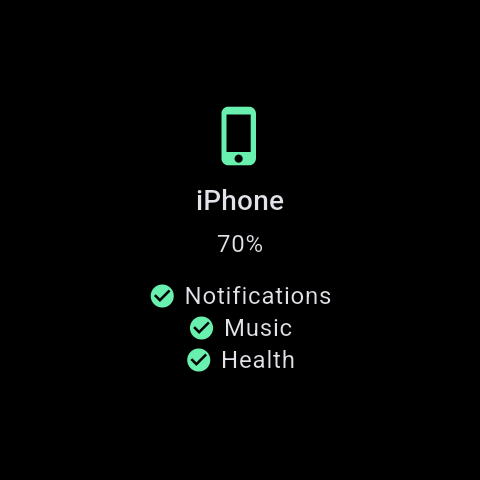
The iPhone app now shows Connected with the watch's battery level. The watch shows your iPhone with green checks.
06Turn on notifications
iPhone notifications usually start arriving on the watch right away. If they don't:
- On the iPhone, open Settings › Bluetooth.
- Tap the ⓘ next to your watch.
- Turn on Share System Notifications.
NoteThe watch shows the same notifications as your iPhone. To choose which apps appear, use Settings › Notifications on the iPhone.
07Connect Apple Health (optional)
The watch can save your steps, distance, flights climbed and heart rate to Apple Health.
- In the iPhone app, tap Connect Apple Health.
- Tap Turn On All, then Allow.
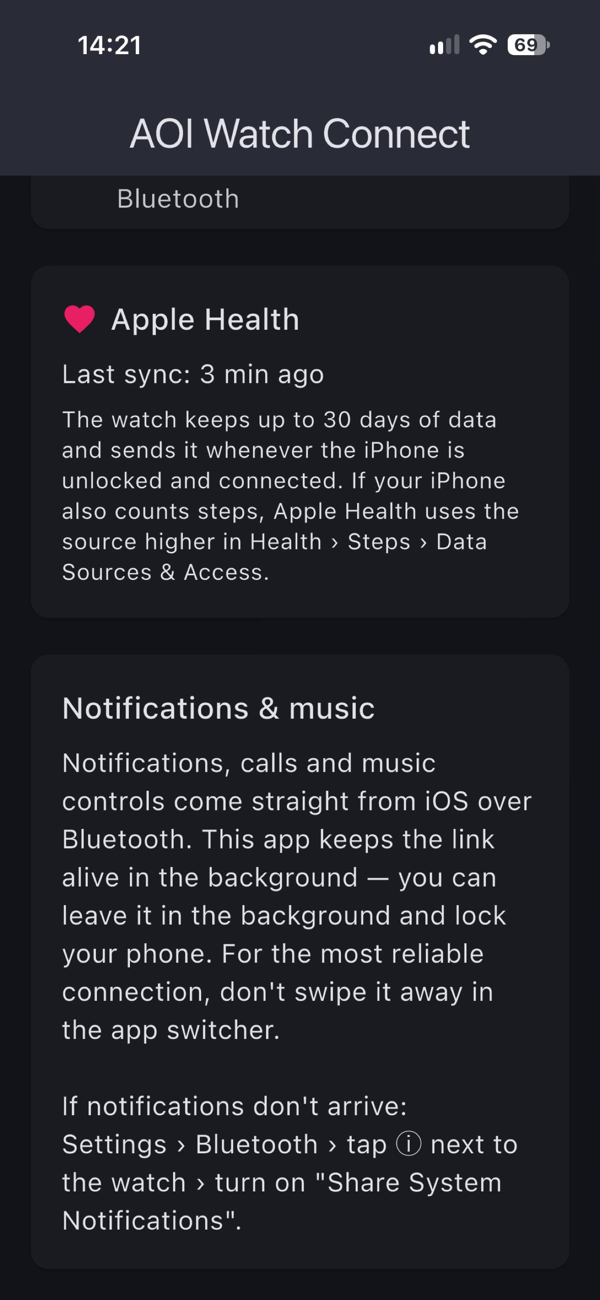
- Wear the watch. Data is sent whenever your iPhone is unlocked and connected, and the app shows Last sync.
TipIf your iPhone also counts steps, Apple Health picks the source that is higher in its list. To prefer the watch, open Health › Steps › Data Sources & Access, tap Edit and drag AOI Watch Connect to the top.
08Daily use
- Notifications appear on the watch automatically.
- Calls: when your iPhone rings, the watch shows the caller, and you can answer or decline. You talk on the iPhone.
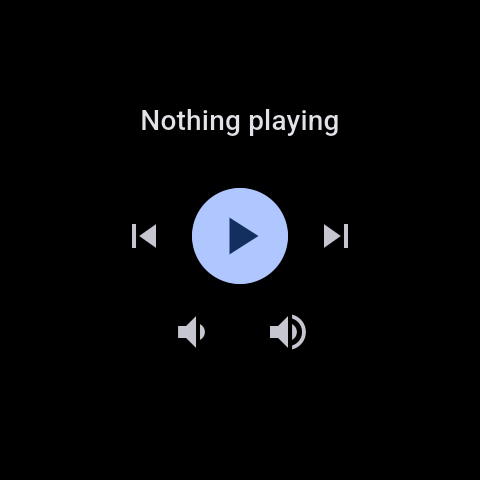
- Music: swipe left on the watch app to play, pause, skip and change the volume of whatever is playing on your iPhone.
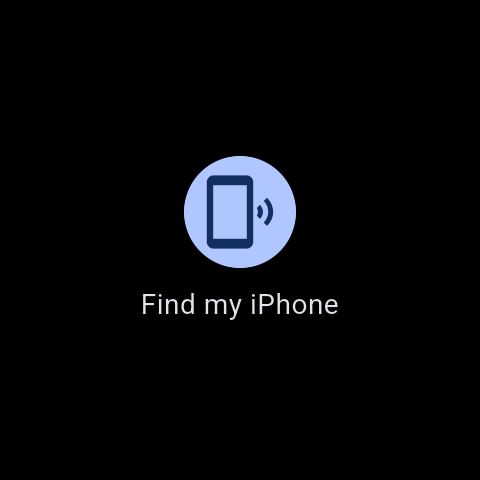
- Find my iPhone: swipe left again and tap the button to make your iPhone ring. To find the watch, tap Find my watch in the iPhone app.
NoteYou don't need to keep the iPhone app open. It keeps working in the background, after a restart, and when you come back into Bluetooth range. Don't swipe it away in the app switcher, though: iOS then stops it until you open it again.
09Troubleshooting
The iPhone app says "Waiting for watch"
- Make sure Bluetooth is on on both devices and the watch is within about 10 metres.
- Open AOI Watch Connect on the watch once.
- Open the iPhone app once. It reconnects automatically.
Notifications don't arrive on the watch
- Check Settings › Bluetooth › ⓘ › Share System Notifications on the iPhone (step 6).
- Check that the watch app shows a green check next to Notifications.
- Check that the app on your iPhone is allowed to send notifications at all.
Health data doesn't show up in Apple Health
- Wear the watch. It only measures while it's on your wrist.
- In the watch app, tap Allow health if you see it, and choose Allow all the time.
- On the iPhone, open Health › profile picture › Privacy › Apps › AOI Watch Connect and turn everything on.
- Unlock your iPhone and open the app. Waiting data (up to 30 days) is sent right away.
Pairing fails or the connection stopped working
- In the iPhone app, tap Forget watch.
- On the iPhone, open Settings › Bluetooth, tap ⓘ next to the watch, then Forget This Device.
- On the watch, open Settings › Connectivity › Bluetooth and remove the iPhone if it's listed.
- Repeat step 5.
Does it need the internet or an account?
No. The watch and iPhone talk directly over Bluetooth. There's no account, no cloud and no tracking. See the privacy policy.
Can I make calls from the watch or reply to messages?
Not yet. Apple only lets other watches show calls and notifications and answer or decline calls. Voice and replies stay on the iPhone.
Download
Search for AOI Watch Connect in both stores: